Moving from a CAD drawing or 3D model to a reliable CNC program often requires several separate tools. Geometry must be imported, the stock and work coordinate system must be defined, machining operations must be configured, toolpaths must be checked, and the final NC program must match the controller used by the machine.
RabbitCAM X brings these stages together in one visual CAM environment. It is designed for creating 2D, 2.5D, and 3D machining jobs for 3-axis CNC machines using DXF drawings and STEP models.
The objective is straightforward: provide a clear workflow from imported CAD geometry to calculated toolpaths, simulation, and controller-specific NC output.
From CAD Geometry to a CNC Project
A CNC project begins with the geometry of the part.
RabbitCAM X supports two widely used CAD formats:
- DXF for 2D drawings, profiles, pockets, and other curve-based geometry
- STEP for solid models, assemblies, and three-dimensional part geometry
Both formats can be used within the same CAM environment. This makes it possible to prepare simple 2D jobs and more complex 3D parts without changing applications or rebuilding the machining workflow around a different interface.
After importing the CAD file, the user can define the stock, establish the workpiece coordinate system, organize the project geometry, and add workholding models where required.
This creates a complete machining setup rather than an isolated collection of toolpaths.
2D, 2.5D, and 3D Machining Operations
Different parts require different machining strategies. A flat plate with profiles and holes cannot be programmed in the same way as a detailed three-dimensional surface.
RabbitCAM X includes machining operations for both types of work:
- Facing for preparing the top surface of the stock
- 2D Contouring for machining internal and external profiles
- 2.5D Pocketing for clearing enclosed areas at controlled depths
- Drilling for creating hole patterns
- Waterline Roughing for removing material from 3D parts in horizontal layers
- Waterline Finishing for finishing steep and near-vertical surfaces
- Surface Finishing for machining detailed three-dimensional geometry
Each operation provides the parameters needed to define its cutting behavior, including tool selection, machining depth, stepover, feed rate, spindle settings, and operation-specific geometry.
Multiple operations can be combined into a single project, allowing the complete machining sequence to be prepared before the final program is generated.
Tool Libraries and Machining Parameters
The cutting tool is one of the most important parts of every CAM operation.
RabbitCAM X includes tool library functionality for organizing the cutters used by a CNC machine. Tool geometry and cutting parameters can be configured so that each operation uses the appropriate cutter and machining conditions.
Keeping tool information inside the CAM project also makes the workflow easier to review. Instead of treating each toolpath as an independent calculation, the user can inspect which cutter is assigned to every stage of the job and how the tools are used across the complete machining sequence.
However, CAM software cannot automatically determine whether a selected tool, feed rate, spindle speed, or cutting depth is safe for every machine and material. These values must always be verified by the operator.
Visual Toolpath Inspection
Calculating a toolpath is only one part of preparing a CNC program. The result must also be inspected before it is sent to the machine.
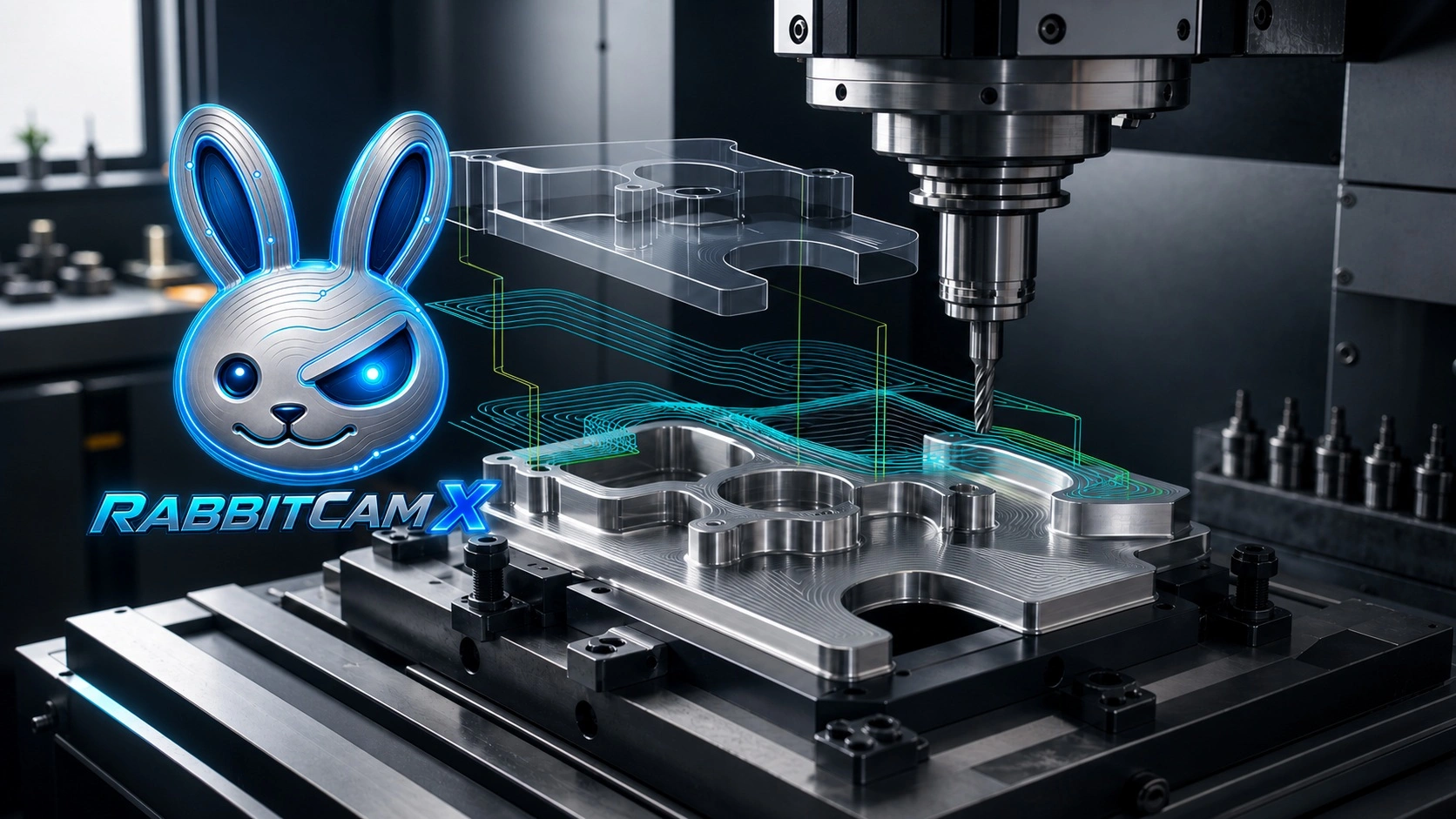
RabbitCAM X displays the imported part, stock, workholding geometry, and calculated toolpaths inside an interactive 3D workspace. The user can examine the project from different angles and review how each operation approaches and machines the part.
Visual inspection can help identify problems such as:
- Incorrect geometry selection
- Unexpected cutting regions
- Incorrect machining depths
- Unsafe rapid movements
- Inappropriate operation order
- Toolpaths that do not match the intended result
The ability to inspect the complete project before post-processing makes it easier to correct setup or programming mistakes while they are still inside the CAM environment.
Simulating Material Removal
Toolpath lines show where the cutter moves, but they do not always make the final result easy to understand.
RabbitCAM X includes machining simulation that visualizes tool movement and stock removal. This provides a clearer representation of how the part changes as each CNC operation is executed.
Simulation is especially useful when a project contains several roughing and finishing operations. It allows the user to inspect how much material remains after each stage and whether the complete sequence produces the expected part.
Simulation does not replace safe machine setup, dry runs, correct work offsets, or operator supervision. It is an additional verification step that helps detect programming problems before real material is cut.
Post-Processors for Different CNC Controllers
A calculated toolpath must be converted into an NC program that matches the syntax and capabilities of the target CNC controller.
RabbitCAM X uses configurable post-processors to generate controller-specific output. Post-processors are available for common CNC workflows, including GRBL, HAAS, and Siemens SINUMERIK controllers.
The selected post-processor is responsible for translating the machining project into the commands expected by the controller. This includes program structure, coordinate movement, spindle commands, coolant commands, tool changes, and other controller-specific output.
Every generated program should be reviewed before machining. Controller configuration, machine kinematics, tool-change procedures, and supported commands can differ between individual installations, even when they use the same controller family.
A Complete SourceRabbit CNC Workflow
RabbitCAM X can be used as the CAM stage of a complete SourceRabbit CNC workflow:
- Import a DXF drawing or STEP model into RabbitCAM X.
- Define the stock, work coordinate system, tools, and machining operations.
- Calculate and simulate the toolpaths.
- Generate a GRBL-compatible NC program with the appropriate post-processor.
- Open the program in Focus CNC Control Software.
- Send and control the job on a compatible GRBL machine, such as one using Rabbit Board 4-Axis and Rabbit GRBL firmware.
RabbitCAM X creates the 3-axis machining program, Focus provides the machine-control interface, Rabbit GRBL handles the motion-control firmware, and Rabbit Board converts the commands into reliable machine signals.
Each component can also be used independently when the rest of the CNC system is compatible.
Prepare and Evaluate Projects Before Subscribing
RabbitCAM X can be downloaded and used to evaluate the CAM workflow before activating a subscription.
Without an active subscription, users can:
- Import DXF and STEP files
- Create and edit CNC projects
- Configure tools and machining operations
- Calculate toolpaths
- Inspect the project in the 3D workspace
- Run machining simulations
An active RabbitCAM X subscription is required when the project is ready and the final NC program must be generated through a post-processor.
This allows users to test the software with their own geometry and prepare a real machining project before deciding whether it fits their workflow.
Who Is RabbitCAM X For?
RabbitCAM X is intended for users who need a focused 3-axis CAM workflow, including:
- CNC machine owners
- Makers and small workshops
- CNC router and milling-machine users
- Machine builders
- Education and training laboratories
- Users working with GRBL-compatible controllers
- Operators who need to prepare 2D and 3D machining jobs from DXF and STEP files
It can be used for straightforward profile and pocketing work as well as projects that require roughing and finishing of three-dimensional surfaces.
Start With Your Own CNC Project
The most effective way to evaluate CAM software is to use it with a real part.
Download RabbitCAM X, import a DXF drawing or STEP model, define the machining setup, and calculate the operations required to produce the part.
The complete project can be prepared, inspected, and simulated before an active subscription is needed for NC program generation.