Spot Drilling
Create spot-drilling moves at selected hole positions, using a relative drill-tip depth below the remaining material at each position. Configure Hole Depth, Approach Clearance, Safe Level, and drilling feeds.
Spot Drilling Overview
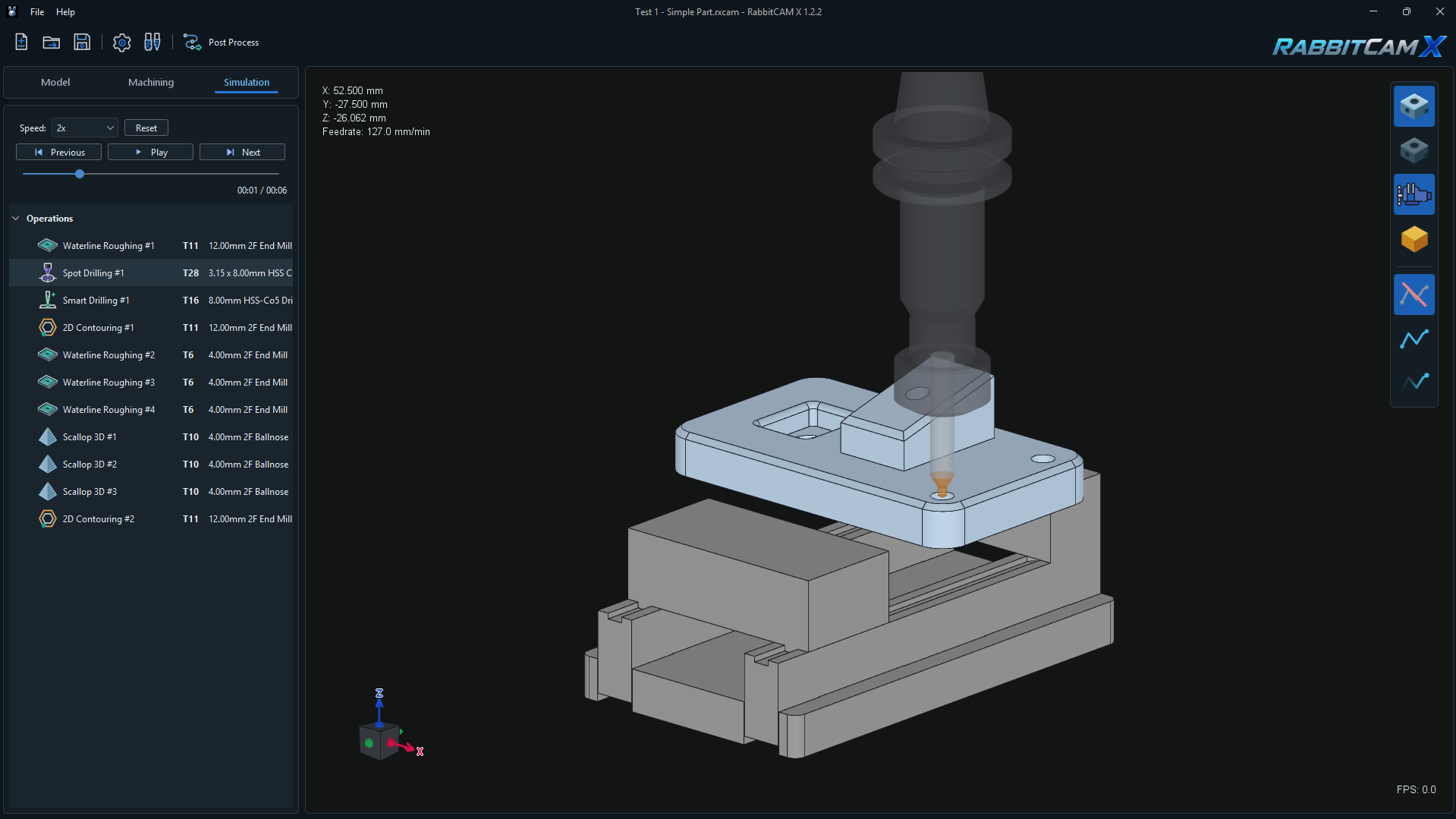
Spot Drilling creates a single downward drilling feed at each assigned hole position, followed by a rapid retract. It supports Center Drill and Drill tools.
The operation finds the top of the remaining material at each hole center and measures Hole Depth downward from that local surface. Holes at different surface heights can therefore share one operation and the same relative depth.
Use Spot Drilling to prepare hole locations before a subsequent drilling operation. It has one Spot Drilling strategy, with no peck or chip-breaking cycle. For those cycles, see Drilling.
Creating a Spot Drilling Operation
- Prepare the Part, Stock, and Workpiece Coordinate System.
- Open Machining > New Operation.
- Select Spot Drilling under Hole Machining.
- Review the name and assigned tool. Use the ... tool-selection button to choose a suitable Center Drill or Drill, then click Create.
- Select the operation, assign its hole positions in Job Assignment, and configure the fields in Strategy.
Place the operation after any surface-preparation operations that should affect its starting surface and before the drilling operation it prepares. The order matters because the local material height comes from the stock remaining before Spot Drilling.
All assigned positions use the same tool, Hole Depth, Approach Clearance, RPM, and Drilling Feed Rate. Use separate operations when these settings need to differ.
Assigning Hole Positions
- Open Job Assignment for the Spot Drilling operation.
- Choose Pick > Boundary and select the closed boundaries that define the required positions.
- Use Finish Boundary Selection when the selection is complete.
- Review the entries in Drilling References and inspect their positions in the 3D view.
For each closed, continuous Boundary, RabbitCAM X uses the area centroid of its XY projection. This produces one drilling position per boundary, not a drilling path around its perimeter. For an irregular boundary, check that its calculated center is the intended hole location.
Compatible Circle and Boundary references can also be copied and pasted between Drilling and Spot Drilling through the Job Assignment list. A Circle reference must resolve to a full horizontal circle. The current Spot Drilling Pick menu offers Boundary selection.
The references supply the XY positions. Their CAD Z values do not set the material surface or final drilling depth. Their size does not change the assigned tool diameter.
At least one reference is required. References with the same XY center are combined into one position, even if their geometry lies at different Z heights.
Hole Depth and the Remaining Material
Hole Depth is a negative drill-tip offset, in millimeters, below the remaining-material surface at each hole. The default is -1 mm.
Final drill-tip Z = Local remaining-material top Z + Hole Depth
For example, a local surface at work Z-2 mm and Hole Depth = -1 mm produce a final drill-tip position of Z-3 mm.
Enter a value below zero. Zero and positive depths are invalid, and the requested depth must not exceed the tool's cutting length. Hole Depth refers to the tool tip; it does not request a full-diameter hole depth or apply a drill-point extension.
The local surface is calculated from the material left by preceding operations. Changing their settings or order can change the absolute starting and ending Z values while leaving the relative Hole Depth unchanged. If no remaining material exists at a selected XY position, generation stops with an error.
Changing Work Zero changes the work-coordinate values used in the output. Hole Depth remains the same relative distance below the local material surface. This operation has no manual Start Level, End Level, or Depth Reference field.
Approach Clearance and Safe Level
Approach Clearance is the distance above the local remaining-material surface where rapid descent ends and movement at the Drilling Feed Rate begins. Its default is 1 mm, and it must be zero or positive.
Approach Z = Local remaining-material top Z + Approach Clearance
With a surface at Z-2 mm and Approach Clearance = 1 mm, the tool descends rapidly to Z-1 mm before feeding toward the final depth. With zero clearance, the drilling feed begins at the calculated material surface.
Safe Level is the Z coordinate relative to Work Zero used for travel between hole positions and for the retract after each hole. It is an absolute work-coordinate level, not an offset added above each local surface.
Set Safe Level at or above the highest approach Z among the assigned positions and high enough to clear material and fixtures along the travel path. If any approach Z is higher than the entered Safe Level, generation stops and reports the minimum required value for that position. Increase Safe Level and run the calculation again.
The current Spot Drilling strategy uses the entered Safe Level for its moves. Check fixture clearance for both the travel moves and each vertical drilling path in the 3D view and Simulation.
Example: Holes at Different Surface Heights
Consider three hole positions with Hole Depth = -1 mm, Approach Clearance = 1 mm, and Safe Level = 5 mm. All Z values below are in work coordinates:
| Position | Local material top | Rapid approach ends | Final drill-tip Z |
|---|---|---|---|
| A | 0 mm | +1 mm | -1 mm |
| B | -2 mm | -1 mm | -3 mm |
| C | -5 mm | -4 mm | -6 mm |
Each position receives the same 1 mm tip penetration below its own local surface. The tool returns to Z+5 mm after each hole before moving to the next position. These values illustrate the level calculation; choose the actual depth and clearances for your setup.
RPM and Drilling Feed Rate
- RPM sets spindle speed in revolutions per minute and must be positive.
- Drilling Feed Rate sets the downward feed in mm/min and must be positive.
The drilling feed applies to the complete descent from the approach point to the final drill-tip depth. Moves to the approach point and the retract use rapid motion.
Select values suitable for the assigned tool and material. Review them after changing tools, together with the tool geometry and cutting length.
Hole Order and Motion Sequence
RabbitCAM X processes the unique XY centers in Job Assignment order, keeping the first occurrence of each center.
For each position, the operation:
- Moves vertically to Safe Level at the current XY position.
- Moves in XY at Safe Level to the next hole center.
- Descends rapidly to the local surface plus Approach Clearance.
- Feeds straight down at Drilling Feed Rate to the local surface plus Hole Depth.
- Retracts rapidly and vertically to Safe Level.
Moves of zero length are omitted. Each hole receives one continuous drilling feed, with no intermediate pecks or dwell. The operation finishes above the final hole at Safe Level.
Generating and Checking the Toolpath
- Confirm the selected hole references and the assigned Center Drill or Drill.
- Check the operation order and the material expected to remain at each position.
- Set a negative Hole Depth, a non-negative Approach Clearance, a suitable Safe Level, and positive RPM and Drilling Feed Rate.
- Click Run & Link and select the Spot Drilling operation to inspect its toolpath.
- Open Simulation and review every hole center, rapid approach, final tip depth, retract, and transfer between holes.
- Recalculate after changing references, tools, stock, Work Zero, earlier operations, or strategy settings.
- Save the project with Ctrl+S and use Post Process when the setup is ready.
For coordinate setup, see Setting the Workpiece Coordinate System. For NC export, see JavaScript Post Processors.
Common Problems
- No compatible tool: assign a Center Drill or Drill with valid tool geometry. End Mills are not supported by Spot Drilling.
- No hole positions: add at least one valid reference in Job Assignment.
- A reference is rejected: check that a Boundary is closed, continuous, and has a valid projected XY area. A copied Circle must be a full horizontal circle.
- No remaining material at World X/Y: review the selected center, Stock placement, and preceding operations. The coordinates in this error are model/world coordinates.
- Hole Depth exceeds the tool cutting length: reduce the requested depth or choose a suitable tool.
- Safe Level is too low: set it at or above every calculated approach point and check travel clearance, then recalculate.
- Unexpected final Z: check the remaining-material surface at that position and add the negative Hole Depth. The selected CAD geometry's Z is not the depth reference.
- Fewer holes than assigned references: check whether multiple references resolve to the same XY center.