Connecting the Rabbit Board over Wi-Fi
Configure Rabbit GRBL Wi-Fi, find the Rabbit Board IP address, and connect through TCP from Focus or another compatible G-code sender.
Before You Start
Wi-Fi network connectivity is available starting from Rabbit GRBL v1.6.0. The default firmware configuration described in the Rabbit Board 4-Axis v1.2 User Manual may have wireless functions disabled, and USB remains the recommended connection for maximum reliability in electrically noisy CNC environments.
Before continuing, verify that the installed Rabbit GRBL build supports the Wi-Fi settings $73, $74, and $75. You will initially need a working USB connection, the Wi-Fi network name (SSID), and its password.
Choose the Wi-Fi Mode
The $73 setting controls whether Wi-Fi is disabled and how the Rabbit Board connects to the network:
| Value | Mode | Description |
|---|---|---|
| 0 | Wi-Fi Off | Wi-Fi is disabled. This is the default mode. |
| 1 | Station Mode | The Rabbit Board connects to an existing Wi-Fi router or access point. |
| 2 | Access Point Mode | The Rabbit Board creates its own Wi-Fi hotspot for a computer, phone, or tablet to join. |
The selected mode takes effect after a reboot. This guide primarily uses Station Mode ($73=1), because it allows Focus, the Rabbit Board, and other devices to communicate through the existing local network.
In Access Point Mode, set $74 to the hotspot name and $75 to the hotspot password, then reboot:
$73=2
$74=RabbitBoard
$75=YourHotspotPassword
Wi-Fi and Bluetooth cannot be used at the same time. If the installed Rabbit GRBL firmware was compiled with Bluetooth enabled, changing $73 will have no effect.
Configure Station Mode through USB
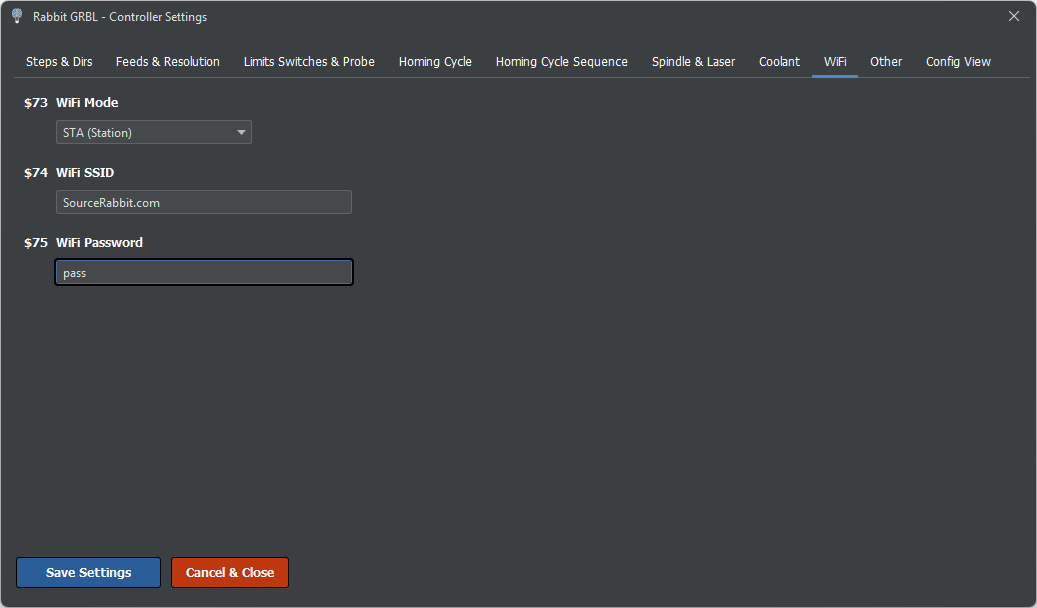
Connect the Rabbit Board to the computer through USB and open the controller settings window (Sytem > GRBL Settings) in Focus, in order to set the WiFi station mode.
From other GRBL-compatible G-code sender. Send the following commands one at a time:
$73=1
$74=YourNetworkName
$75=YourPassword
Replace YourNetworkName and YourPassword with the actual Wi-Fi credentials. The settings are stored automatically and remain available after the controller is powered off.
Reboot and Read the Assigned IP Address
Turn the Rabbit Board off, wait a few seconds, and turn it back on. Keep the USB connection open and watch the console. When the connection succeeds, Rabbit GRBL reports the assigned IP address and TCP port:
[MSG:WiFi connected - IP: 192.168.1.105:5001]Write down the IP address. The default TCP port for Rabbit GRBL Wi-Fi communication is 5001. If the message reports a connection failure, check the SSID and password, then reboot the controller again.
Find the IP with Network Utilities Ultimate
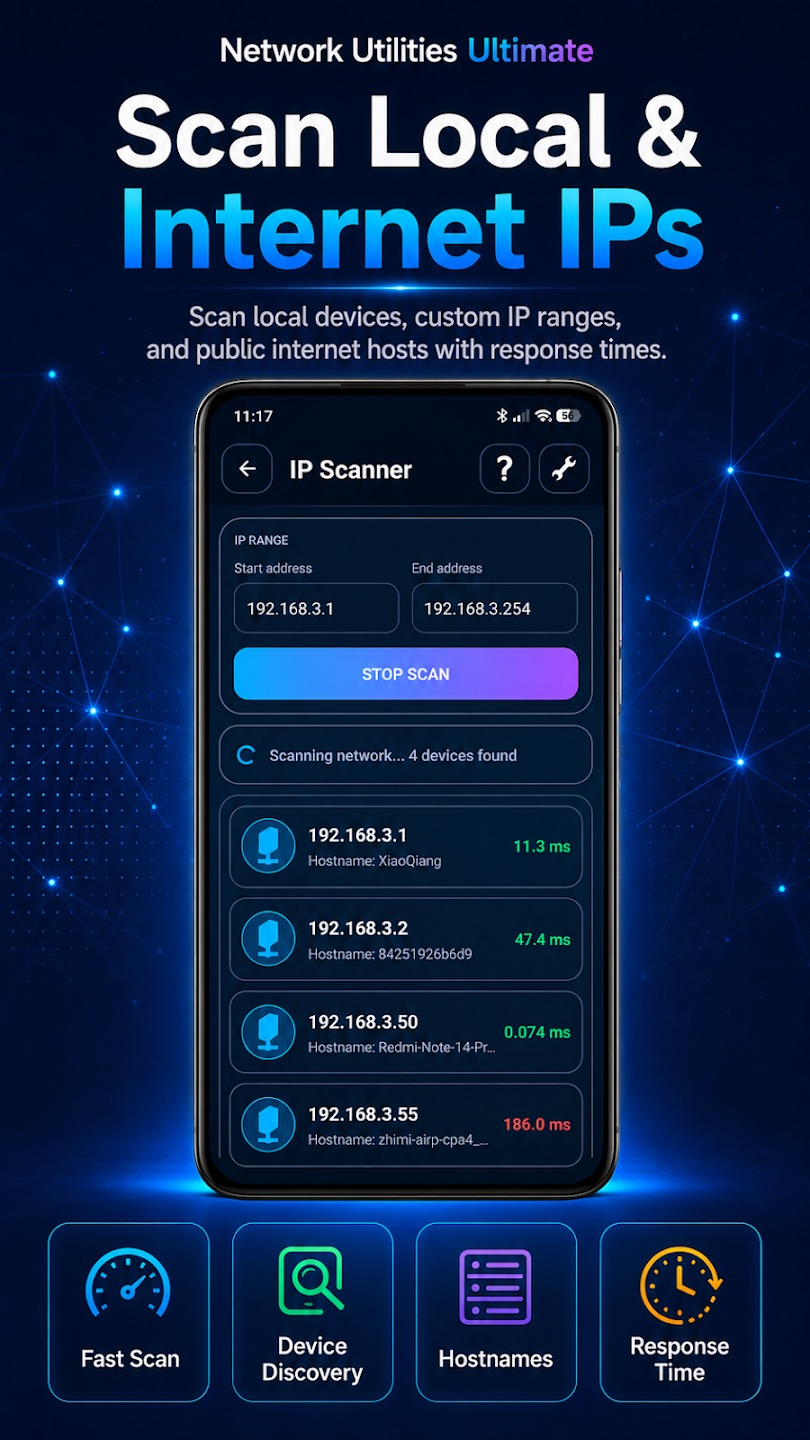
If the USB console is not available or the IP address has changed, you can find the Rabbit Board from an Android phone using the IP Scanner included with Network Utilities Ultimate.
Download Network Utilities Ultimate from Google Play
- Connect the Android phone to the same Wi-Fi network as the Rabbit Board.
- Open Network Utilities Ultimate and select IP Scanner.
- Scan the local Wi-Fi network to list connected devices and their IP addresses.
- If the board is difficult to identify, turn it off and scan once, then turn it on and scan again. The newly appearing device is normally the Rabbit Board.
- Note the discovered IP address and use TCP port 5001.
The device hostname or vendor information shown by a scanner can vary, so comparing scans before and after powering the board is often the easiest identification method.
Connect from Focus over TCP
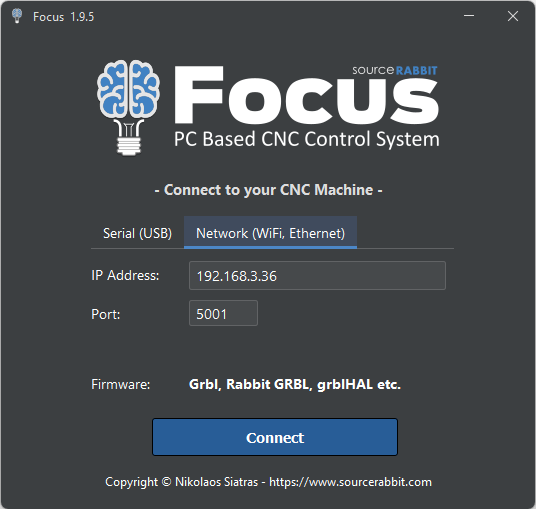
On the connection form of SourceRabbit Focus select the Network (WiFi, Ethernet) tab instead of a Serial (USB). Enter the Rabbit Board IP address and port 5001, then connect.
After Focus establishes communication and displays the Rabbit GRBL status, the USB cable can be disconnected. The computer running Focus and the Rabbit Board must remain connected to the same reachable local network.
Keep the Network Connection Reliable
In Station Mode, the IP address is normally assigned by the router through DHCP and may change after a reboot or router restart. If the address changes frequently, create a DHCP reservation for the Rabbit Board in the router settings.
Avoid guest Wi-Fi networks or access-point isolation modes that prevent local devices from communicating with each other. Use a trusted and stable local network, keep the CNC controller within reliable signal range, and use USB when the wireless connection is not sufficiently stable for machine operation.
Turn Wi-Fi Off
To disable Wi-Fi, connect to Rabbit GRBL through an available connection and send:
$73=0Reboot the Rabbit Board after changing the setting. The controller will no longer attempt to connect to the configured wireless network.
Wi-Fi Troubleshooting
- WiFi connection failed: Re-enter the SSID with $74 and the password with $75, then reboot.
- WiFi SSID is not set: Set $74 to the router name in Station Mode or the hotspot name in Access Point Mode, then reboot.
- No Wi-Fi message: Send $$ and confirm that $73 is set to 1 or 2. Also confirm that the installed Rabbit GRBL firmware supports Wi-Fi and was not compiled with Bluetooth enabled.
- The previous IP no longer works: Scan the network again with Network Utilities Ultimate or check the router device list.
- The board appears in the scan but Focus cannot connect: Confirm port 5001, check firewall rules, and make sure the network does not isolate wireless clients.
If wireless communication remains unreliable, use the shielded USB connection recommended for the Rabbit Board in CNC environments.